Create Checklist Templates that can be applied to transactions to standardize your team's workflow.
Introduction
Checklist templates define the tasks your team follows for each type of transaction.
After you create a template, you can add it to transactions manually or have Pipeline apply it automatically based on rules you define. Every checklist used in a transaction starts with a template.
Templates also support task features such as relative due dates, task visibility, @mentions, key dates, and agent-editable due dates. You configure these settings for each task when building the template.
Benefits
Checklist templates help bring structure and consistency to your transaction workflow.
Instead of recreating task lists for every deal, your team can rely on templates to add the right tasks at the right time.
- Consistency across transactions: Every deal follows the same process because required tasks are added automatically at the appropriate stage.
- Time savings: Agents and admins don’t need to recreate the same task lists for each transaction.
- Fewer missed steps: Important compliance and operational tasks appear automatically, reducing the risk of something being overlooked.
- Clear expectations for agents: Agents can quickly see what needs to be done at each stage of a transaction.
- Scalable operations: As your brokerage grows, templates help maintain consistent processes across locations, teams, and transaction types.
Checklist templates turn your transaction workflow into a repeatable system that keeps deals organized and moving forward.
Access Checklist Templates
View all of your company's checklist templates in one place. You can quickly see when each template applies and who created it.
Who Can Do This: Master admins and admins with Fully Manage Checklists and Templates permission.
To view your company's Checklist Templates:
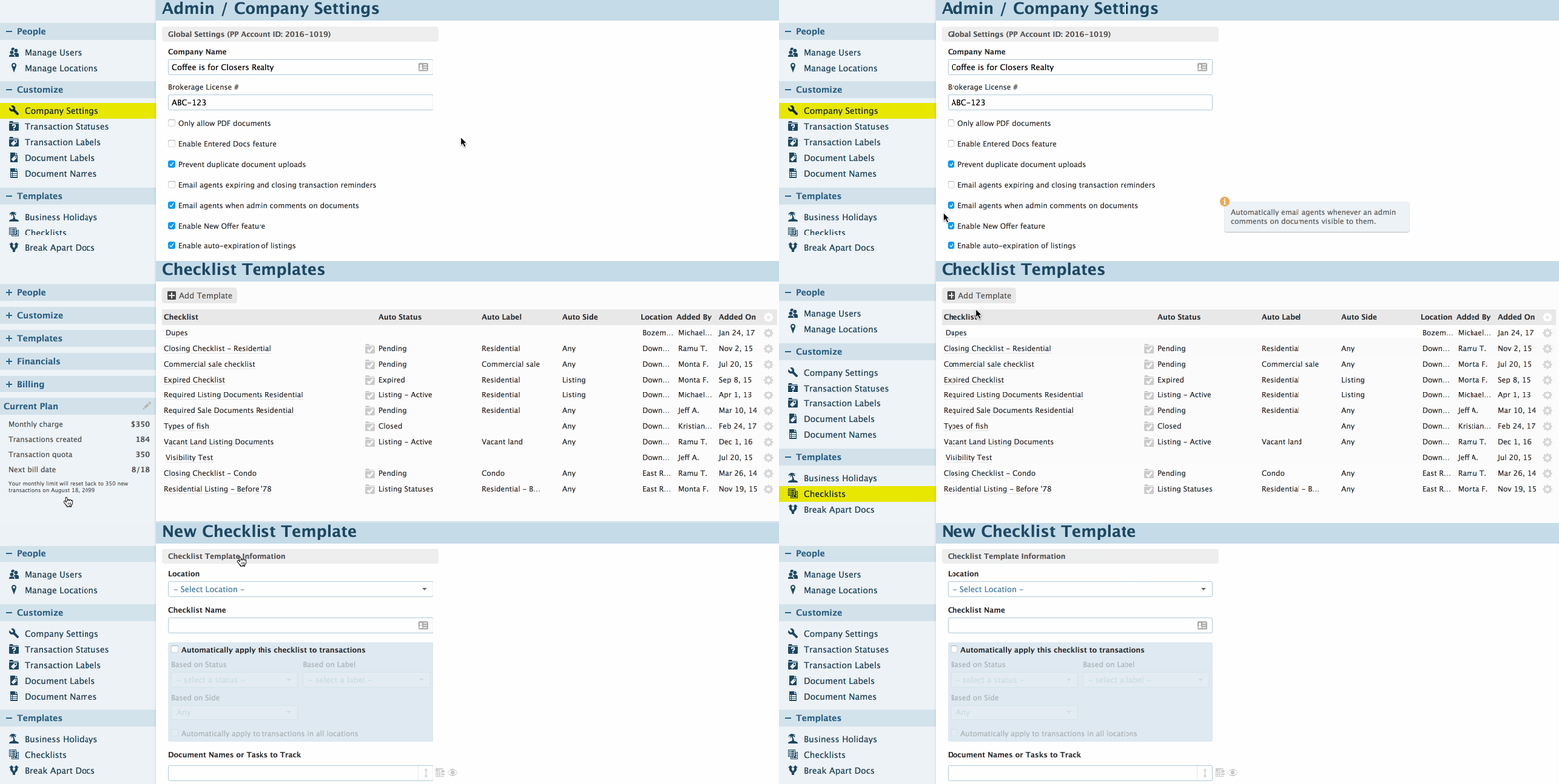
- Go to Company Settings
- Click your name in the upper right corner, then [Admin / Settings].
- Go to Checklists:
- Select [Checklists] from the left menu.
- View Checklist Templates
- See a list of all checklist templates in your company account.
- Each template shows the rules that determine when it automatically applies to a transaction, along with who created it.
Add a Checklist Template
Add a new checklist template to define the tasks your team follows for a specific type of transaction.
Who Can Do This: Master admins and admins with Fully Manage Checklists and Templates permission.
To add a new Checklist Template:
- Access Checklist Templates
- Open your company's checklist templates.
- Add a New Template
- Click [Add Checklist Template].
- Create the Template
- Enter the checklist details, add the tasks you want to track, then save the template. The options below explain the available settings.
Location
If your company uses multiple locations in Pipeline, choose which locations the checklist applies to.
You can still add templates manually to any transaction. However, if the template is set to apply automatically, it will only apply to transactions within the selected locations.
Only admins assigned to those locations can edit the template.
Checklist Name
Enter a descriptive name for the checklist.
Automatically Apply to Transactions
Pipeline can automatically add checklists when a transaction’s status, side, or label matches the rules you define.
Learn more about Smart Checklists.
Document Names or Tasks to Track
Enter the tasks your team must complete for this type of transaction. Each task can represent a required document or an action that needs to be completed.
Add Tasks
To add tasks:
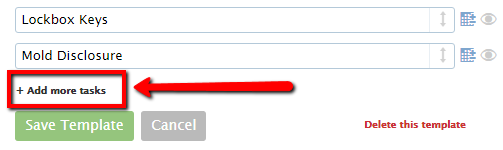
• To add tasks individually, enter a task and click [Add more tasks].
• To add multiple tasks at once, click [Bulk add tasks], paste or type your list (one task per line), and click [Add Tasks].
You can add a URL to a task by entering the full web address. Links added to tasks are clickable and open in a new window.
Use @mentions to highlight or assign tasks to specific people or roles. Learn more about @Mentions →
Rearrange Tasks
Rearrange tasks by hovering over the right side of a task until a hand icon appears, then drag the task to its desired position in the list.
When the template is applied to a transaction, tasks appear in the same order you set here. Users can still choose to sort their task list by due date if they prefer.
Delete Tasks
To remove a task, delete the text in the task field. When you save the template, the task is removed.
Deleting a task from a template does not affect transactions where the checklist has already been applied.
Set a Relative Due Date
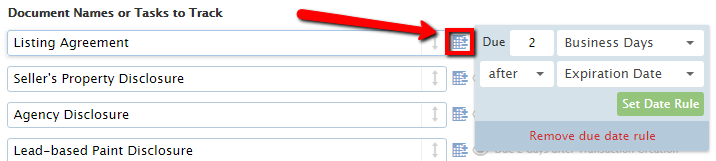
You can set tasks to be due relative to key dates on the transaction, such as Close Date, Listing Date, or Acceptance Date. When the checklist is applied and those dates are entered, the task due dates calculate automatically.
Click the calendar icon next to a task to configure a relative due date.
Learn more about Relative Due Dates →
Set Task Visibility
Control who can see each task in the checklist. This can help protect sensitive tasks, keep checklists organized, and reduce clutter for users who aren't responsible for the task.
Click the eye icon next to a task to set visibility.
Learn more about Task Visibility →
Designate as a Key Date
Mark a task as an important timeline date. Key dates can appear on transaction coversheets, sync to your calendar app, and autofill into emails or message templates.
Click the key icon next to a task. When enabled, the key turns blue.
Learn more about Key Dates →
Allow Agents to Change Due Date
You can optionally allow agents to add or modify the due date of specific tasks once the checklist is applied to a transaction.
Click the person icon next to a task to enable this.
Learn more about Agent-Editable Due Dates →
Save the Template
Click [Save Template] to finish creating your checklist template. The template is now available to be added to transactions manually or automatically.
Manage Checklist Templates
You can update, duplicate, or delete checklist templates as your workflow evolves. Templates help keep your team aligned and ensure every transaction follows a consistent process.